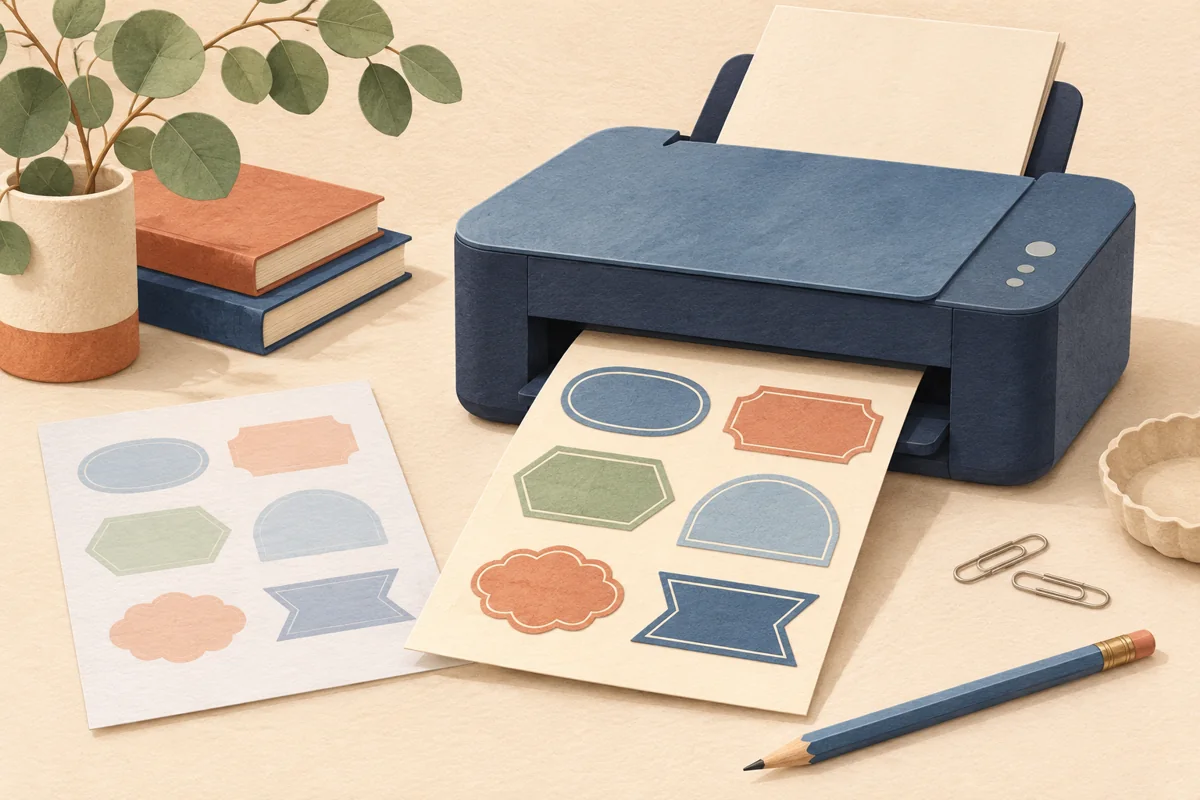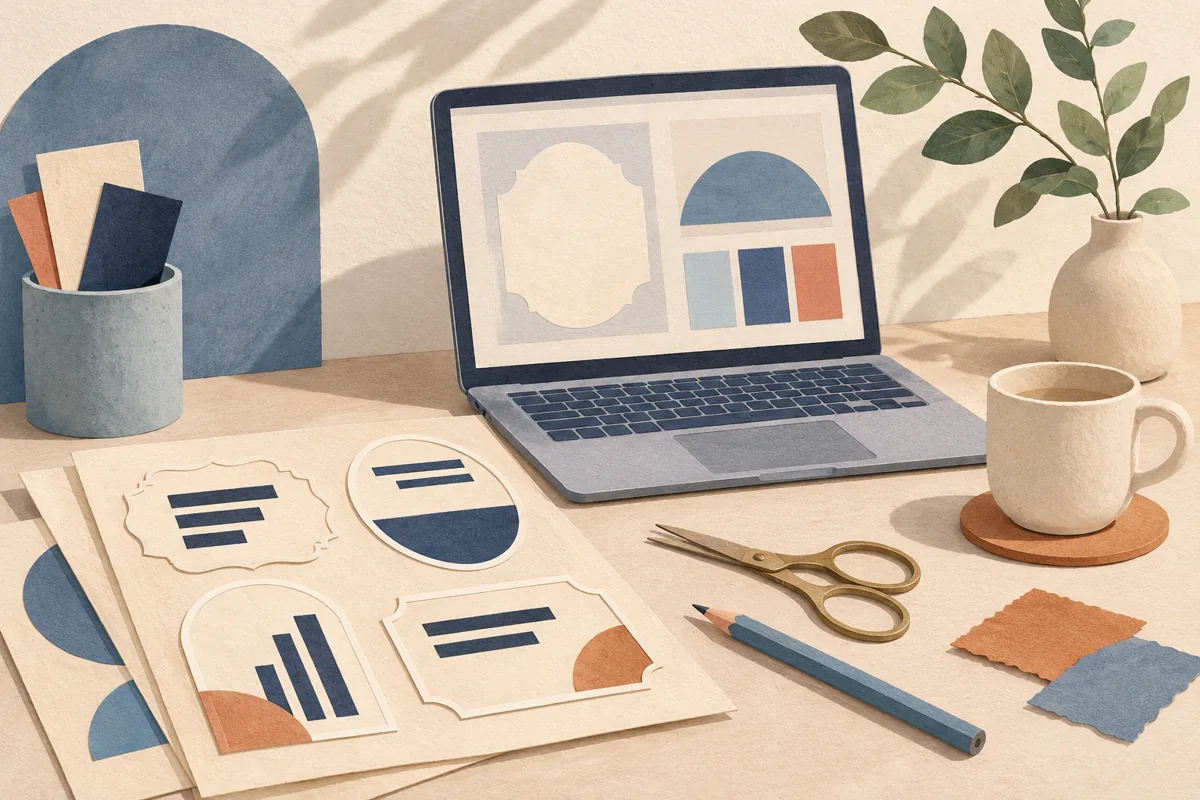
A smaller PDF is convenient for email, but file size is only part of a label handoff. The printer still needs suitable image detail, correct dimensions and readable text. Decide who needs the file before reducing it, and keep the approved production export separate from any lightweight preview.
01
Identify the reason the PDF needs to be smaller
Check whether the problem is an attachment limit, a slow download or a provider’s upload restriction. Each has a different solution. A customer preview may tolerate a smaller file, while a commercial print provider may offer a transfer method that accepts the original production PDF without reducing image quality.
For an illustrative sauce label, keep one export for print approval and another for an email preview. Name them accordingly so a staff member cannot accidentally submit the preview for a large label run. If a provider specifies a maximum upload size, ask which export settings it recommends before making repeated reductions.
02
Review the actual PDF export controls
Open the download controls and choose the PDF option appropriate to the recipient. Review compression alongside the other available settings. Canva’s interface and export options can vary by account and design type, so confirm what the current panel offers rather than following an old screenshot of a different plan.
Change one setting for the comparison. Keep the same pages, dimensions and approved artwork so any visible difference is easier to attribute to compression. Flattening is a separate option that merges design elements into an image. Do not select it automatically as a shortcut to reducing the file size.
03
Compare the saved files at useful scales
Open both PDFs outside the editor and compare their page counts and dimensions first. Then inspect fine illustrations, gradients and photographic detail. Compression damage may appear as softened edges, blocky regions or lost subtle texture. Check the smallest text as well, especially when any page content has been rasterized.
Print the relevant page at actual size and read the product name, quantity and supporting information. If the label includes a working barcode or QR code, validate the final production proof using the intended workflow. A successful preview on a large screen does not establish that a smaller file is suitable for printing.
| File purpose | Decision to make |
|---|---|
| Email preview | Smaller file with clear preview naming |
| Printer submission | Provider-approved quality and dimensions |
| Editable archive | Original Canva design plus approved production export |
04
Preserve a reversible file workflow
Keep the full-quality original and record the setting used for the smaller version. Avoid repeatedly opening and recompressing previous downloads. Return to the Canva master when a new export is needed so the handoff is based on the approved source rather than an increasingly processed derivative.
If the size remains unsuitable, review whether unnecessary pages were included or whether the recipient can accept a different transfer route. Removing unused proof pages may solve an attachment problem without changing the approved label artwork. Confirm the final page selection again before sending the file.
BEFORE YOUR NEXT STEP
Your practical checklist
- Identify the actual size restriction.
- Keep a full-quality production export.
- Change one export setting for comparison.
- Proof the exact file being submitted.
Questions & answers
Is compression the same as flattening?+
No. Compression reduces stored data and may affect image quality. Canva flattening merges design elements into an image and can even increase the file size.
Should I always choose the smallest PDF?+
No. Choose a file that satisfies the recipient’s requirements and preserves suitable detail. A printer’s approved production specification should guide the decision.
Sources & further reading
Official references for the technical points in this guide. Check current specifications before production.