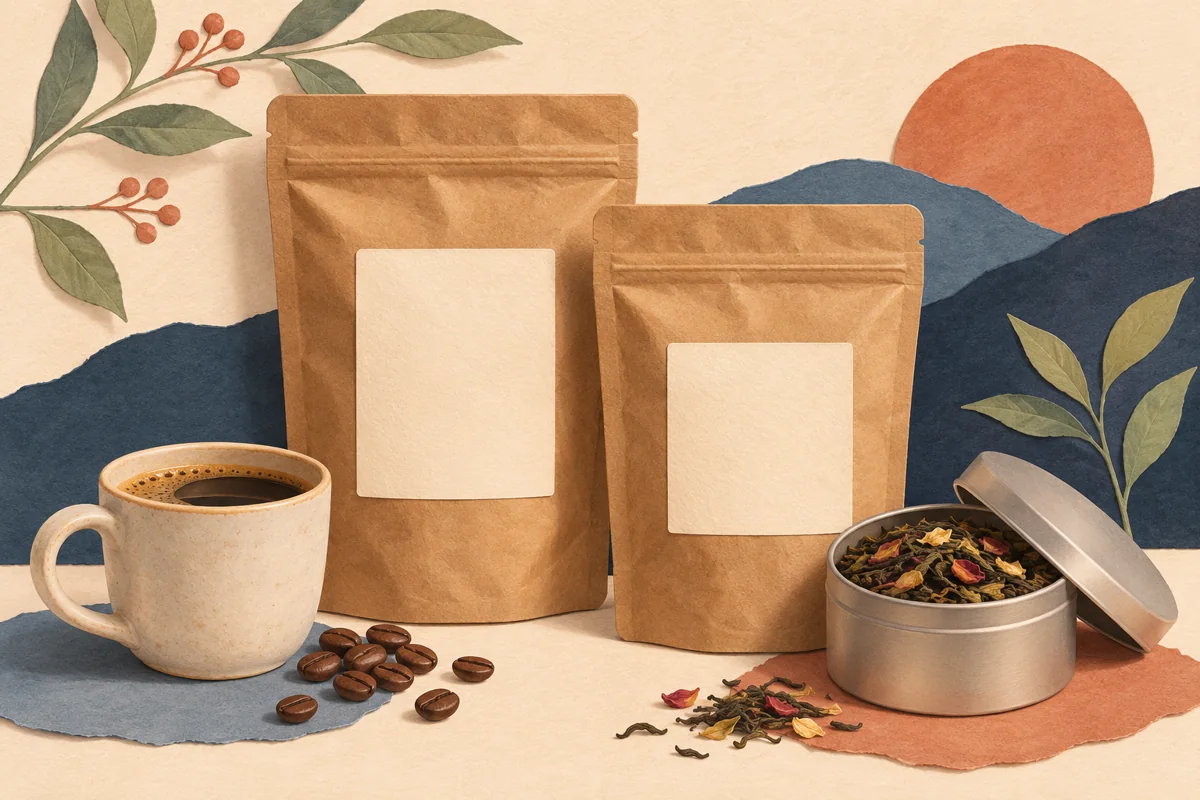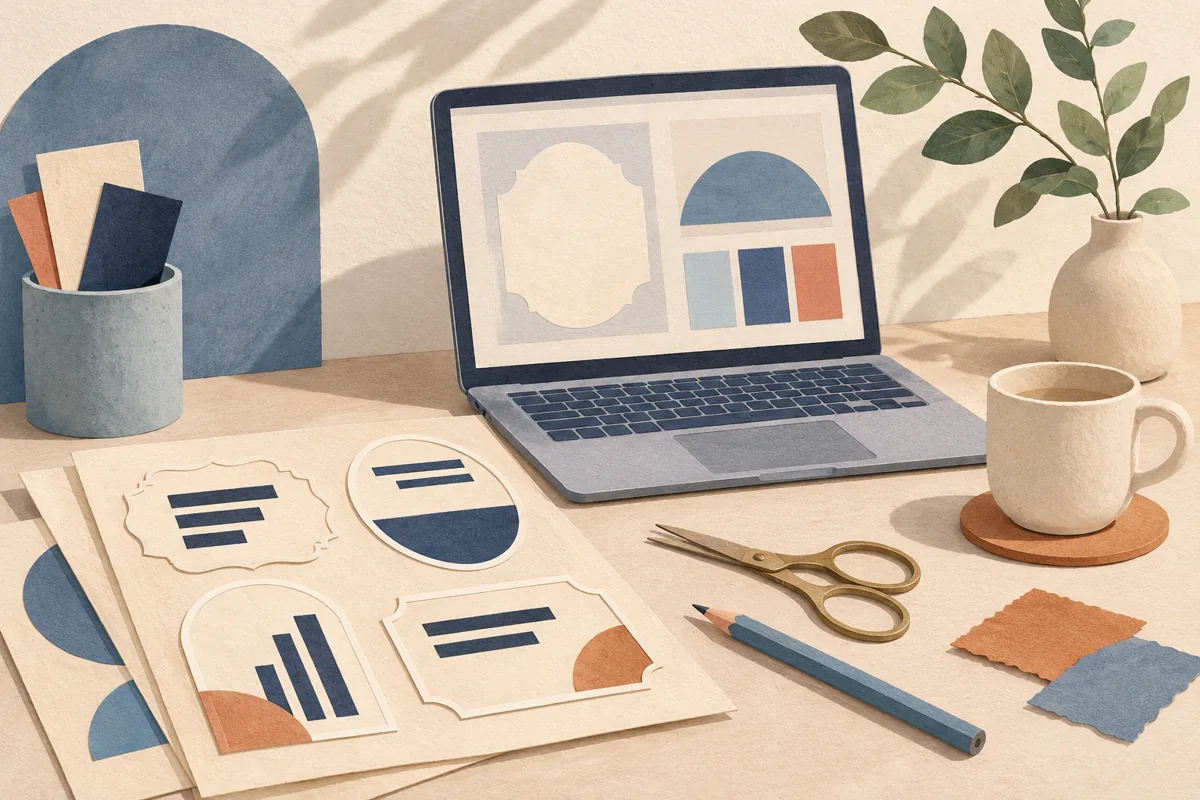
A small shift in the product name becomes noticeable when several coffee bags sit together. Rulers and guides give each page the same reference points. Set the page size first, then use a few deliberate guides for the areas you want to keep consistent across the range.
01
Set up the page that the ruler should describe
Open the label page and confirm its dimensions and unit. Canva’s ruler follows the design’s dimensions. If you later choose a different physical product in a print workflow, check that product specification as well. The ruler is a reference for the canvas you are editing.
For an illustrative 70 by 90 millimeter coffee label, begin with a vertical center guide and a pair of guides defining the text area. Add a horizontal guide for the coffee name. Keep an annotated paper proof nearby so these positions relate to the actual bag rather than an arbitrary on-screen grid.
02
Give each guide one job
Use guides to identify meaningful relationships. One might align the left edge of the brand and product description. Another might keep the roast name on the same horizontal line. If a guide serves no clear alignment decision, remove it so the important references remain easy to recognize.
A page filled with closely spaced guide lines can make it difficult to see whether a small leaf or border is actually balanced. Work with the minimum set needed for the label family. Add temporary guides while resolving a specific detail, then remove those you no longer need.
| Guide | Useful role |
|---|---|
| Vertical text edge | Align product and supporting text |
| Shared horizontal position | Keep variants level in a lineup |
| Temporary center line | Compare an emblem with the page center |
03
Compare the longest variant against the same references
Duplicate the page for your longest product name and keep the guide positions unchanged. Replace the wording and look for wrapping, crowded margins or supporting text pushed too far down. Decide whether the layout needs more height for the name before making every variant.
For example, a short name such as House Blend and a longer name such as Highland Breakfast Blend may need different line breaks. Keep the information blocks aligned even if the longer name uses two lines. A shared guide can hold the next text block steady while you adjust the name above it.
04
Lock the working references and inspect the print
Canva’s preset and custom guides can be locked or unlocked. Leave the approved references locked while editing product wording so an accidental drag does not move the alignment target. When the format changes, deliberately revisit the guide plan and save the updated source.
Export a proof and view it without the guides. Print the longest and shortest variants side by side, then place them on filled bags. Guides help maintain consistency, while that final comparison reveals whether the visual balance works on the real packaging and under ordinary viewing conditions.
BEFORE YOUR NEXT STEP
Your practical checklist
- Confirm the canvas dimensions first.
- Give each guide a clear purpose.
- Compare long and short variant names.
- Inspect an export without editing guides.
Questions & answers
Do guides print on my labels?+
They are editor alignment aids. Check the exported file to distinguish guides from any actual lines you added as design elements.
Should every label use the same guide positions?+
Use shared positions within a matching format. A different page size or package shape may need a separate guide plan.
Sources & further reading
Official references for the technical points in this guide. Check current specifications before production.