A thin white sliver along a printed label can come from artwork that stops exactly at the intended cut edge. Text that looks comfortably placed on screen can also end up too close to a trim. Understanding the difference between bleed, trim and safe space helps you prepare a file with room for production tolerances while keeping the important content protected.
01
Give the three zones different jobs
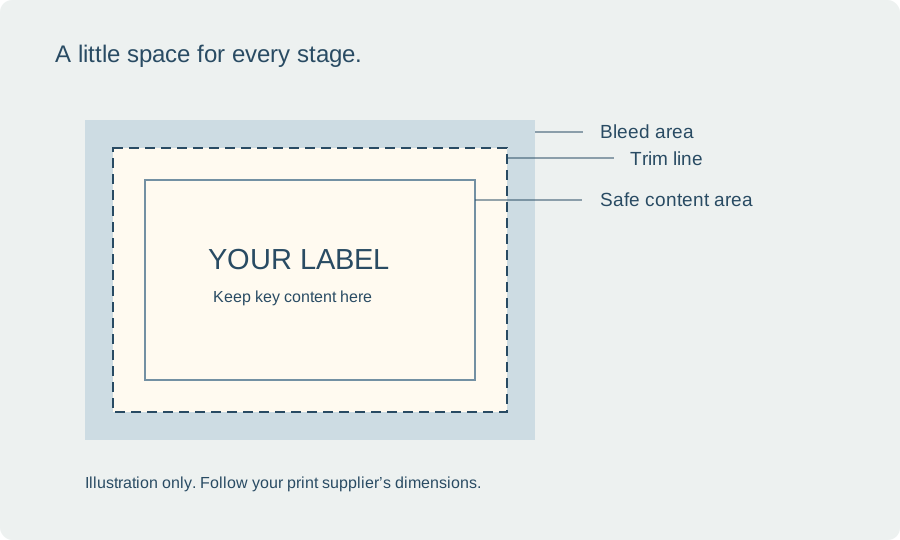
Imagine a label as three nested areas. The inner area holds information that must remain visible. The intended cut edge defines the finished shape. Artwork extending past that edge gives the printer material to trim without exposing a blank line if the cut moves slightly.
Keep essential words, logos and scannable codes comfortably within the approved safe area. Extend expendable background color or artwork into the bleed where the workflow requires it. A decorative detail can cross the edge intentionally, but it should not be the only place carrying important information.
02
Get the printer’s specification before exporting
Ask for the finished size, required bleed, safe area and preferred file format. Also ask whether crop marks are wanted and whether they should be included in the file you supply. Different suppliers and production methods can have different expectations.
For a precut sheet used at home, the page grid may need exact dimensions without additional marks. Adding extra content around an individual label can alter the exported page and cause scaling or alignment problems. Treat a sheet template and a single label sent for trimming as different production jobs.
03
Use Canva’s print guides deliberately
Canva provides margin, bleed and crop-mark controls, although their location and availability can vary by document and editor. Use the current help instructions for your design type. These guides are useful references; your external printer’s specification remains the requirement to match.
Review the background at every edge after changing the layout. A photograph or colored panel may appear to reach the canvas boundary while leaving a gap in the bleed area. Check each page independently, especially when the design was duplicated and adapted into several shapes.
04
Be careful with borders and rounded shapes
A narrow border close to the trim can make small cutting variations very visible. Try a wider inset or a design that does not rely on an exactly equal hairline around the edge. Compare the options on a paper proof rather than judging from an enlarged screen.
For a round or shaped label, make sure you understand the supplier’s cut outline and whether it should be supplied as a separate production element. Do not assume that drawing a circle in Canva creates a compatible die line for every print supplier. Request a template when the shape or finishing is specialized.
05
Review the export as a production file
Open the exported file and check its page dimensions, selected pages and edge treatment. If you requested crop marks, confirm that the export actually contains them. If you are assembling onto a sheet, check that no automatic fit setting changes the finished label size when you print.
Produce one proof that follows the intended cutting or sheet workflow. Compare the final trimmed result with your design and check the smallest text near the edge. Keep the printer’s specification, approved export and proof photograph together so a reorder uses the same production assumptions.
BEFORE YOUR NEXT STEP
Your practical checklist
- Confirm finished size, bleed and safe-area specifications.
- Extend backgrounds, keeping essential content safely inside.
- Check whether crop marks belong in your workflow.
- Inspect the exported dimensions and a finished physical proof.
Questions & answers
Should I always turn on crop marks and bleed?+
No. Follow the printer or sheet workflow. Extra marks can be inappropriate for some precut label arrangements.
Can I use a fixed bleed amount for every print supplier?+
Do not assume that. Request the production specification and check that your exported file matches it.
Sources & further reading
Official references for the technical points in this guide. Check current specifications before production.