The best label file format depends on what will happen next. A graphic uploaded into a label-sheet tool has a different role from a production file sent directly to a printer. Canva offers several export choices, but selecting the one that sounds highest quality is not enough. Confirm the physical size, the receiving system’s requirements and the appearance of the final proof.
01
Start with the next step in the workflow
Are you sending a single label to a commercial printer, printing an assembled sheet yourself or importing artwork into a supplier’s online tool? Write that down first. The receiving system may require a particular format, color setup or page arrangement.
Ask the printer or tool’s documentation before exporting several versions. Supplying a different format just because it looks sharper on your monitor may create extra work or an incorrect scale. Keep the original editable design available so requested changes can be made cleanly.
02
Understand the practical difference
Canva describes PDF Print as an export intended for printing, with print-related options. PNG is an image format useful for graphics and can support transparency when the relevant export feature is available. Plan features can vary, so check the options shown in your account.
A PDF can carry a complete page arrangement; a PNG is often placed as an image into another document. In that second workflow, its physical size is established again by the receiving layout. A large pixel count alone does not tell the printer how many inches or centimeters the finished label should occupy.
| Next step | Useful starting point |
|---|---|
| Send a finished print page | Ask whether PDF Print matches the printer’s specification |
| Place artwork in a label-sheet tool | Use its supported image or PDF format |
| Show a web preview | Use a suitable web image, separately from the print master |
03
Keep physical size separate from pixel dimensions
For a raster image, the relationship is pixels divided by intended inches. An illustrative 900-pixel-wide image placed at 3 inches gives 300 pixels per inch. Place that same image at 6 inches and the effective density is lower. These are planning calculations, not proof that the original artwork contains enough detail.
Enlarging a small screenshot does not restore missing information. Use the highest-quality source artwork available and check fine lines or small text in the exported file. If the logo is already fuzzy in the design, changing export formats may not solve the underlying problem.
04
Check pages, transparency and edge settings
Export only the pages that belong to the job and give the files names that identify their product and version. If transparency is part of the intended result, check it in the receiving workflow rather than assuming a white preview means the background is transparent.
Match bleed and crop marks to the printer’s specification. For a precut-sheet layout, extra exported borders can affect alignment. For professionally trimmed labels, omitting the required edge treatment can create a different problem. The format decision belongs with these production details.
05
Compare the actual print result
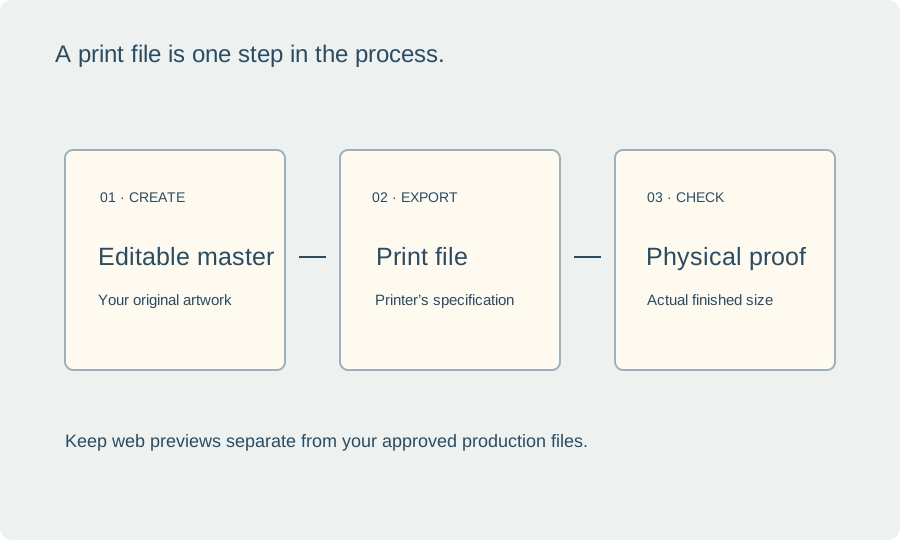
Open the downloaded file independently of Canva and verify its dimensions. Print a proof using the settings intended for the final run. Read the small text, inspect border details and check that the artwork is not stretched or softened after placement in another layout tool.
Save the approved export alongside the editable file and the production notes. Keep web previews in a separate folder so they are not accidentally sent for printing. A useful naming system tells you the product, physical size, version and intended use without having to reopen every file.
BEFORE YOUR NEXT STEP
Your practical checklist
- Ask which format the next tool or printer requires.
- Confirm physical size after importing or exporting.
- Check the actual downloaded file and selected pages.
- Keep print masters separate from website preview images.
Questions & answers
Is PNG always worse than PDF for printing?+
No. A correctly prepared PNG can be appropriate for a workflow that requests an image. Check effective resolution, dimensions and the receiving system.
Will PDF Print fix a low-quality logo?+
Not by itself. Replace a poor source image with better artwork and inspect a physical proof.
Sources & further reading
Official references for the technical points in this guide. Check current specifications before production.