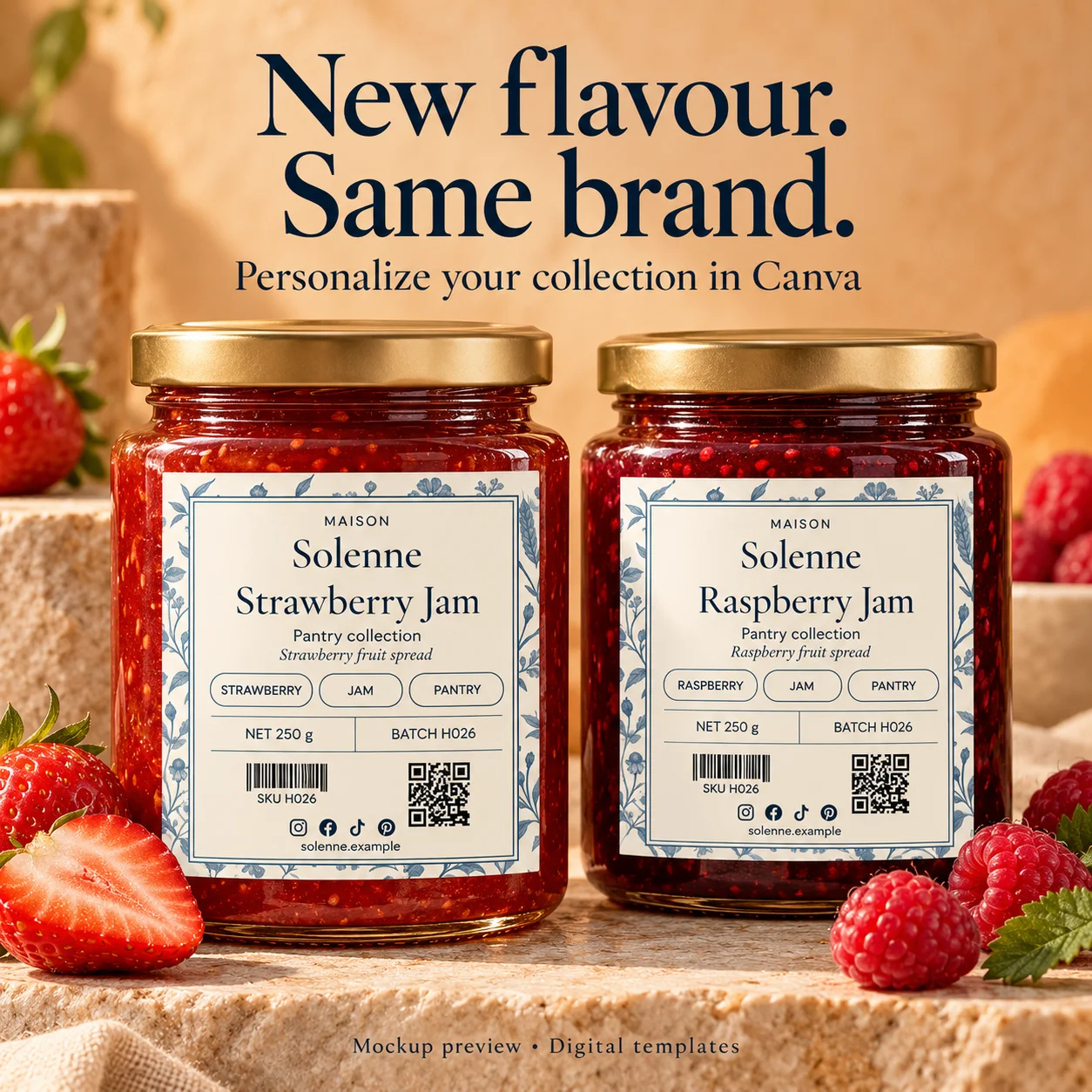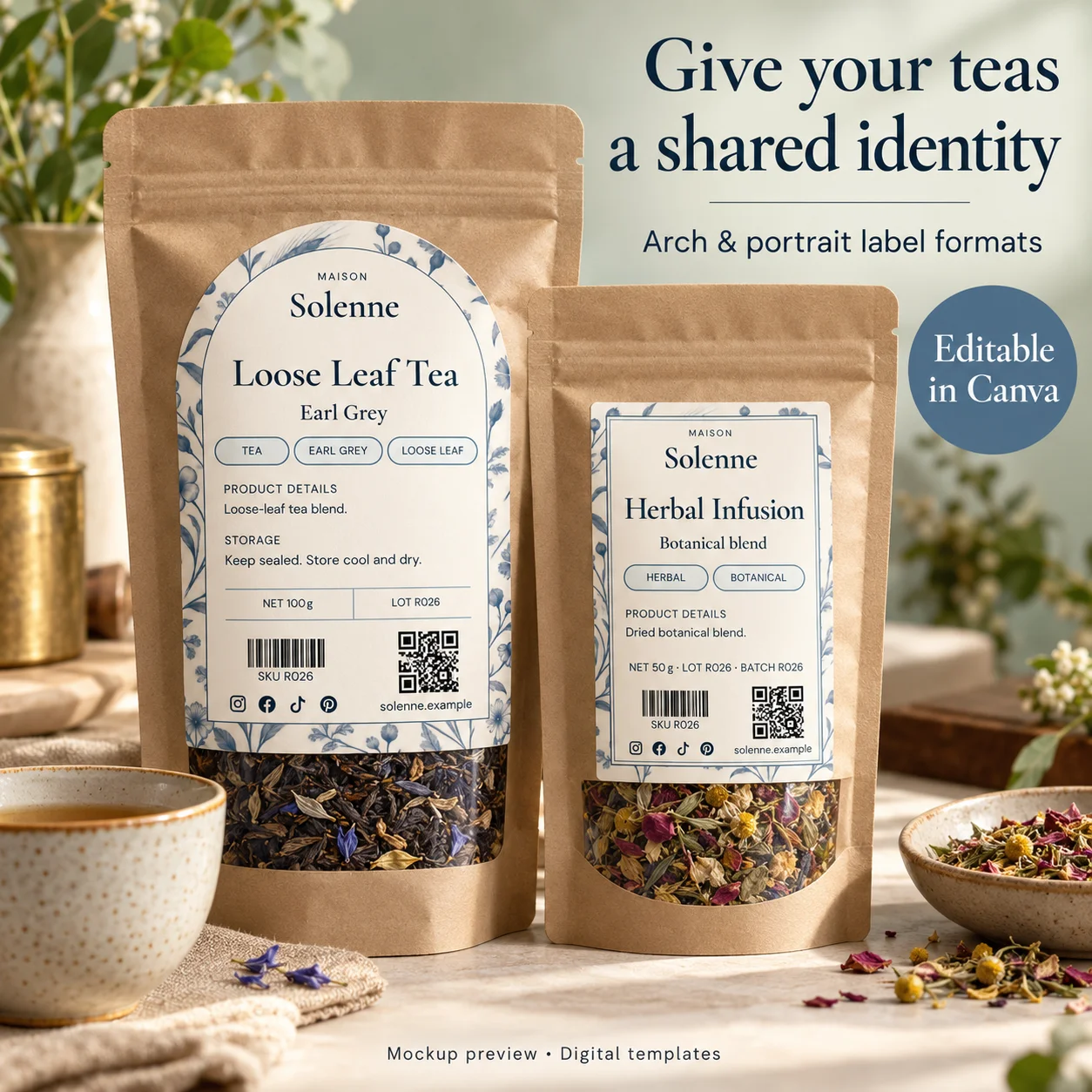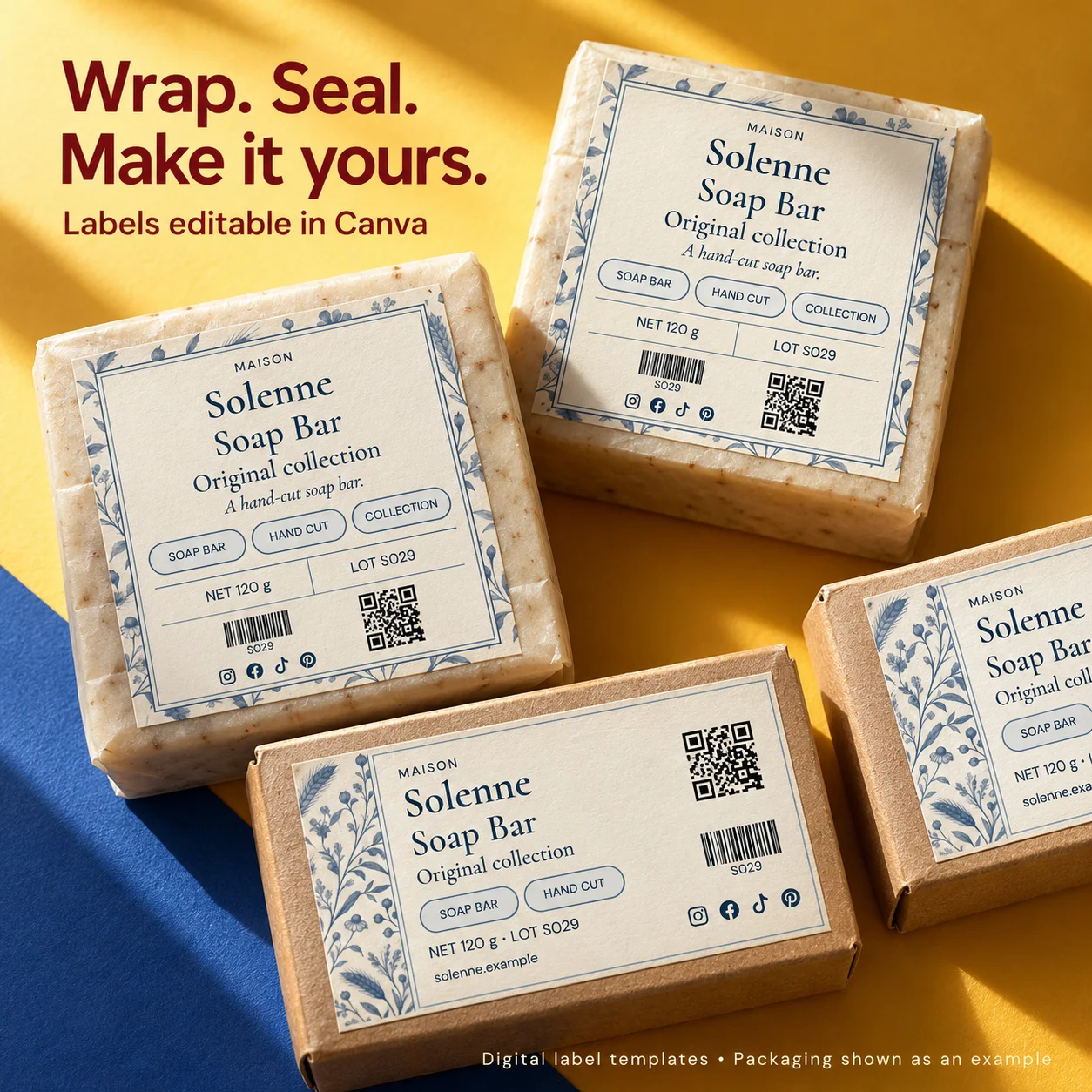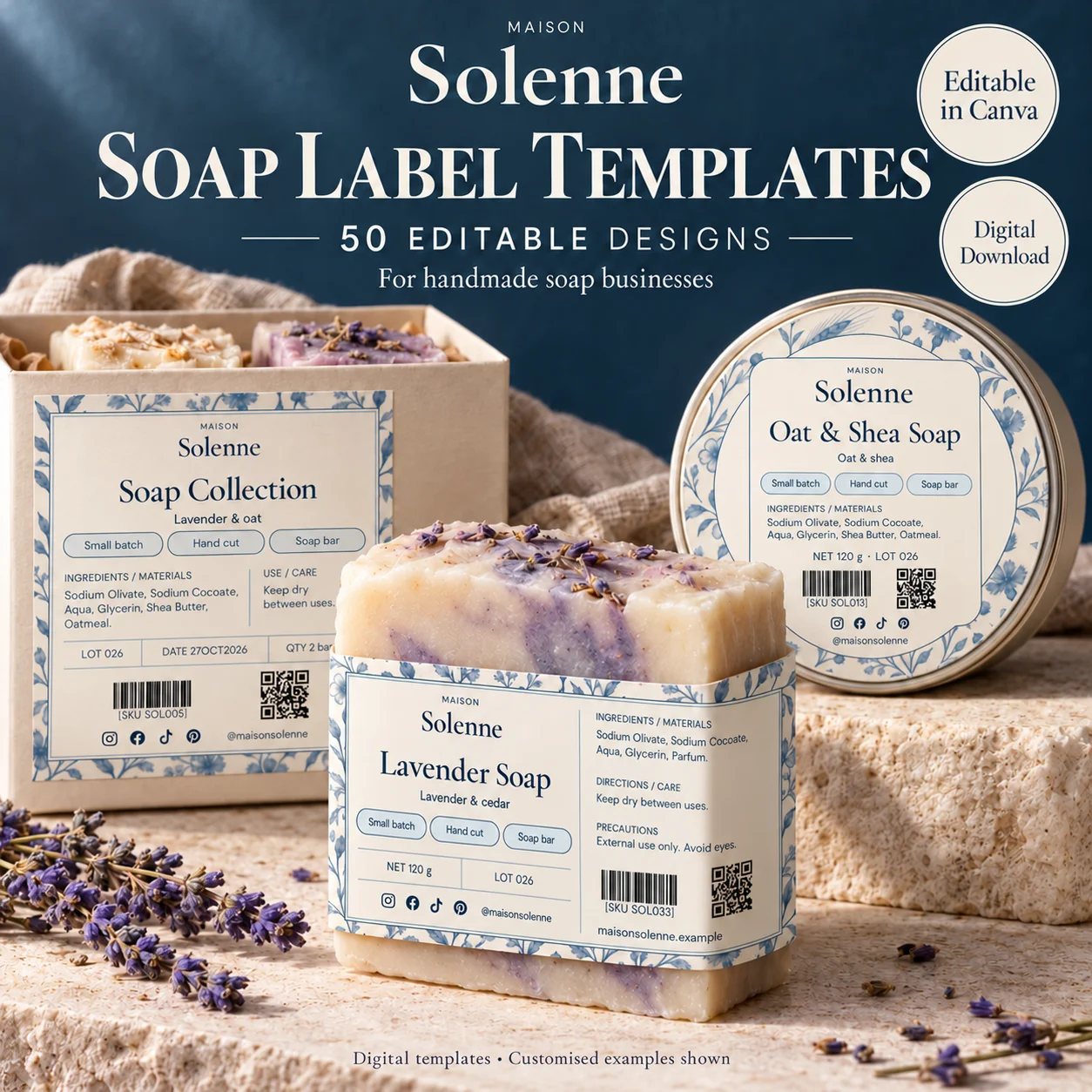
A good product label begins with the package in your hand. Before choosing a font or a botanical border, decide where the label will sit and what a buyer needs to understand. Canva makes arranging the design approachable, but the finished size, final wording and printing method still need your attention. This workflow takes you from an editable starting point to a proof you can check on a real container.
01
Start with the container and the finished size
Measure the smooth area that will hold the label. A jar’s capacity is not a label dimension: two containers holding the same amount can have different shapes. Wrap a strip of paper around the intended area, trim it to a comfortable fit and write down its width and height.
Compare that paper shape with the template’s existing dimensions. A mixed-format collection does not mean every design exists in every possible size. Choose a suitable layout or prepare a separate document at the required size; avoid stretching artwork until it looks distorted.
02
Write the label before decorating it
Collect your approved product name, brand name and other required wording in a separate document. Divide the text into what belongs on the front and what needs a supporting panel. This makes it easier to recognize when the chosen label simply does not have enough room.
Set a clear visual order. The product should be identifiable at a glance, with the brand easy to find and supporting information readable at close range. Leave decorative flourishes until those practical jobs are working. A lovely border cannot compensate for a product name lost in tiny type.
03
Personalize one master layout
Open the supplied template using its access instructions, then work in your own editable copy. Replace placeholder wording carefully and check every page you plan to use. Add a high-quality logo rather than a small screenshot from social media.
Choose a restrained palette and a small number of fonts. Establish the spacing and text alignment on one label first, then adapt that system to other products. Treat scent names, flavors and weights as variable fields so a new version does not accidentally retain details from the previous one.
04
Prepare the file for the way you will print
For a commercial print order, ask the printer which file, color settings and bleed setup it accepts. Canva’s print guides help you keep essential information away from the cut edge. Background artwork can extend into bleed; words and logos should not depend on that outer strip.
For a home printer, decide whether you are using a full sheet to cut yourself or a precut label sheet with a specific grid. The exported design must match that sheet arrangement. A correctly sized individual label will not automatically align with every adhesive sheet.
05
Approve a physical proof
Print one label at the intended dimensions and place it on the actual package. Read it in ordinary light, including the smallest text. Check that the label avoids shoulders, seams and moving parts. Turn the package around and see whether the design still feels balanced.
Keep the final editable design and the exported print file together, with a date or version number. Record the paper and print settings that produced your approved result. That small handover note makes the next batch easier to reproduce and helps you spot which part changed if a later print looks different.
BEFORE YOUR NEXT STEP
Your practical checklist
- Confirm the finished width and height.
- Replace all placeholder text on every selected page.
- Check packaging wording for the market where the product will be sold.
- Proof one label at actual size on the real package.
Questions & answers
Do I need Canva Pro to edit a label template?+
It depends on the template and the elements it uses. Check the product’s account requirements before purchase; do not assume every Canva template is free-account compatible.
Does a Canva template include printed labels?+
HerDigitalArt collections are digital templates. Printing, label paper and packaging are arranged by you.
Sources & further reading
Official references for the technical points in this guide. Check current specifications before production.