A packaging mockup helps you see how a label belongs with its container before you print. It is most useful when the artwork, vessel shape and visible dimensions resemble the product you plan to sell. Build it around a decision you need to make, such as name size or scent differentiation.
01
Choose the decision before the scene
For a first draft, use a simple front view and a quiet background. Decide whether you are checking the product name, a label shape or the difference between variants. A busy scene with flowers and props makes those decisions harder to judge.
Keep the actual container beside the screen. If you sell a short jar, a tall-bottle scene can hide a crowded side label. Choose the closest available package shape, and note any important difference you will still need to check physically.
02
Use the actual artwork and crop
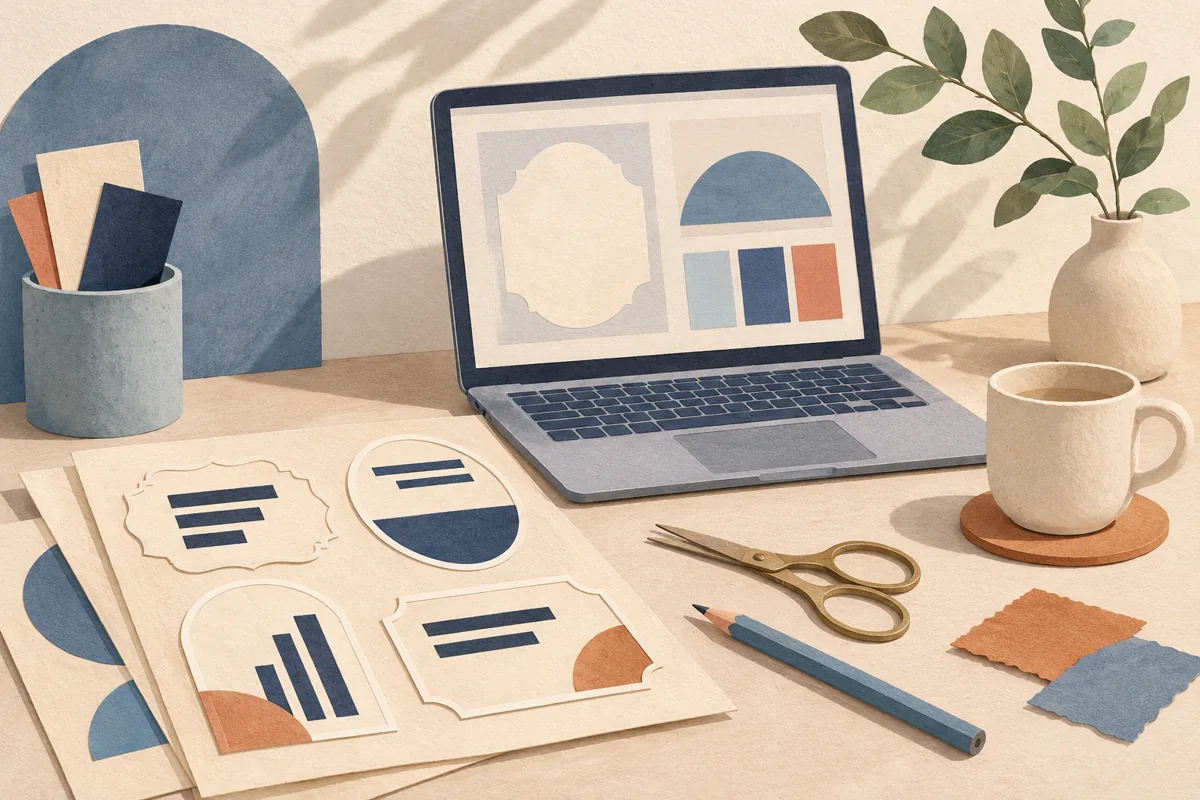
Export the approved design with the correct proportions and place it inside the mockup’s editable area. Canva’s mockup guidance describes adjusting the image position and crop. Check whether the tool stretches, crops or wraps your artwork before judging how much information fits.
If your front label is twice as wide as it is tall, preserve that ratio in the mockup. For a wraparound label, mark which section belongs at the front so a line of back-panel information does not accidentally become the hero view.
| View | Decision it helps you make |
|---|---|
| Front | Product name size and information hierarchy. |
| Angled | How much text disappears around the package. |
| Small thumbnail | Whether a shopper can distinguish the variants. |
03
Compare variants in the same scene
Duplicate the scene and change only the label artwork. An illustrative tea range might use Breakfast Blend, Garden Mint and Evening Rooibos. Place the three packages side by side, then check whether their names remain clear when the image is reduced to listing size.
Use the longest name as a stress check. If it becomes much smaller than the other two, revise the label layout before polishing the scene. The same comparison can help you decide whether a small accent color is enough to separate variants.
04
Check the parts the mockup cannot measure
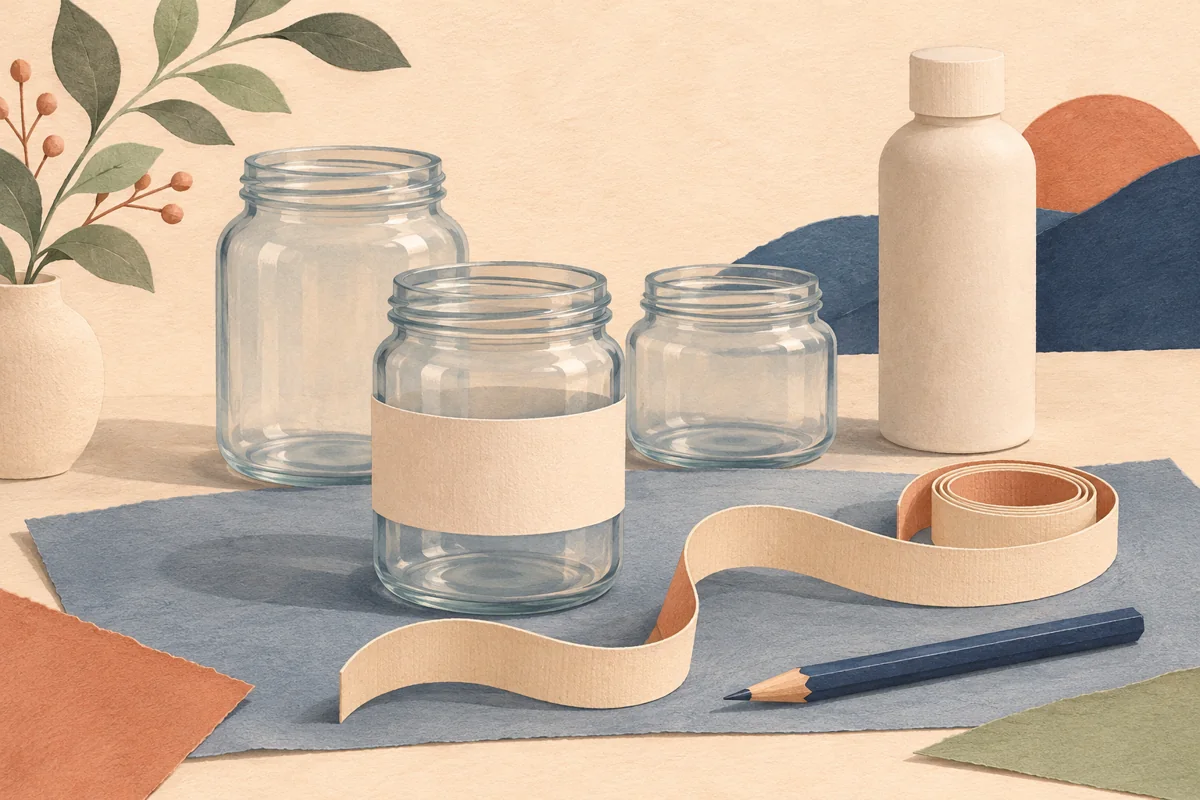
Print a paper outline at the intended dimensions and tape it to the real package. Compare its position with the mockup. Check the shoulder, lid, fold, seam and any area hidden by a gift-box insert. Then print one sample on the material you plan to use.
Keep the mockup and sample photos together when reviewing the design. A simulated matte surface or white background cannot establish how your actual stock and ink will look. Use the physical sample to choose the final print combination, then update the mockup so the listing represents the approved package.
BEFORE YOUR NEXT STEP
Your practical checklist
- Choose one packaging decision to check.
- Preserve artwork proportions and front placement.
- Compare variants in the same scene.
- Approve fit and print on a real sample.
Questions & answers
Can a mockup prove a label will fit?+
Use a measured paper proof on your container for that decision. A mockup helps you judge the visual arrangement.
Do Canva label templates include every mockup shown?+
Check the individual product listing for included files and layouts. Styled packaging images can illustrate the finished look.
Sources & further reading
Official references for the technical points in this guide. Check current specifications before production.